How to model the eShop .NET sample with FLOWCONSOLE
Walk through the public eShop Preview model, understand its structure, and share a read-only view of the model.
This guide is based on the current Preview .fc.ts DSL. The API will change,
so treat the example as the best description of the current behavior, not as a
long-term stable contract.
This walkthrough uses the public eShop repository as the reference model, with arch/eshop.fc.ts as the main example file.
The goal is simple: open the model, understand how the file is structured, verify the rendered model view, and share a read-only view with anyone.
Before you start
Before you open the model in the editor, you need a project in the product app
and access to the Git repository that contains arch/eshop.fc.ts.
Create a new model in your project
Open the target project and click New Model. In the creation dialog, enter
a model name, keep the default meta-schema, and use the Git Settings section
to point the model at the repository that contains the eShop example.
For this example, the important fields are:
Repository URL: the clone URL of the eShop repositoryBranch:mainDSL path patterns:arch/**/*.fc.ts
This gives FLOWCONSOLE a repository source and a narrow path scope for
locating .fc.<ext> architecture model files.
Save repository credentials in model settings
After the model is created, open /models/:modelId/settings. In Git Configuration, confirm the repository URL and branch, keep Git Provider as
Direct Git, and fill in Username plus Password / Token with the
platform credentials that FLOWCONSOLE should use to access the repository.
Save the configuration before moving on.
Run the first Git sync
On the same settings page, click Sync Now. This pulls the repository source
into FLOWCONSOLE and lets the platform load the .fc.ts model from the
configured path pattern.
Wait until the sync completes successfully before opening the editor. If the sync fails, review the repository URL, branch, path pattern, and credentials first.
Open the eShop model in the editor
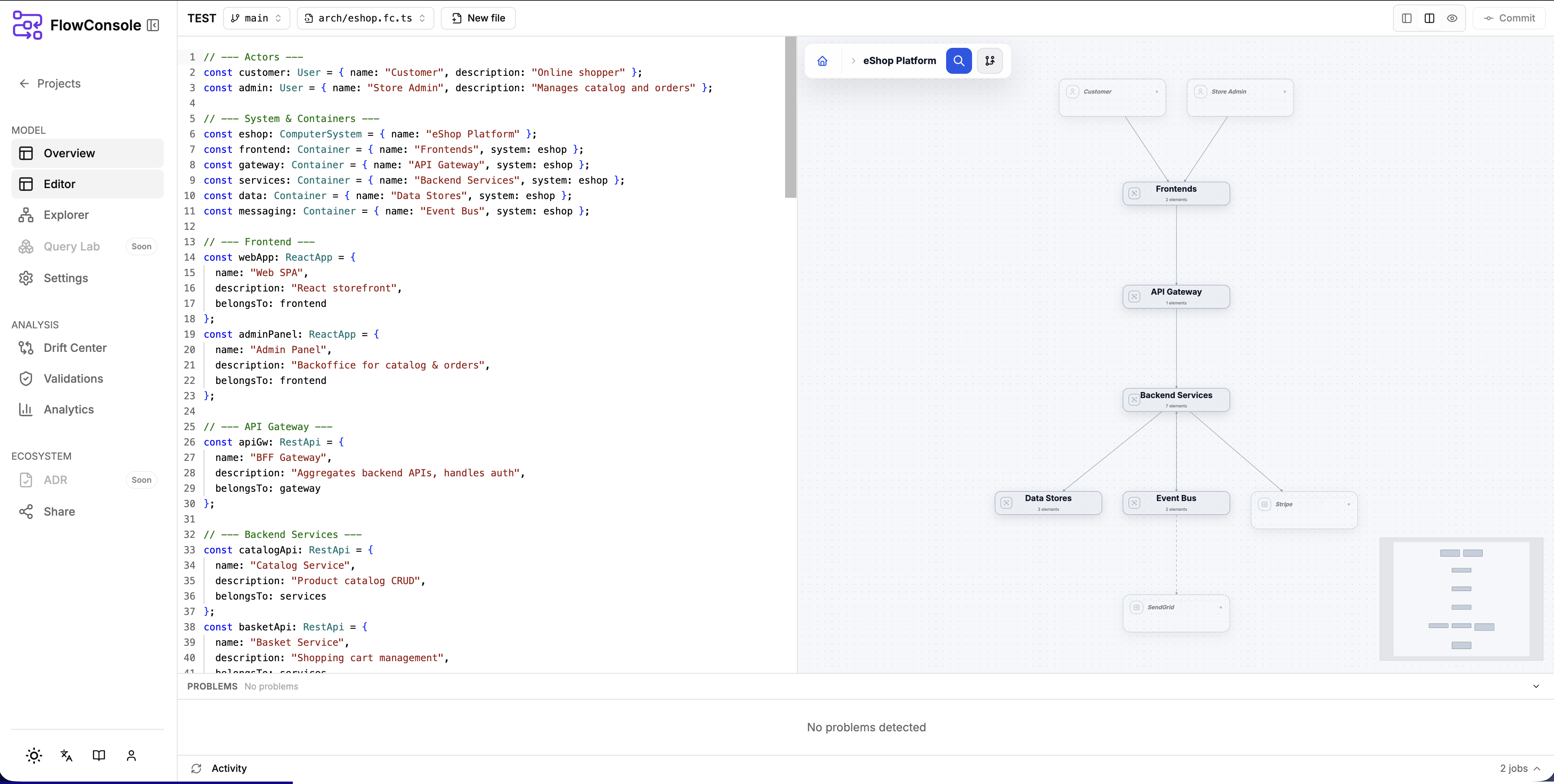
Open the model in the editor and keep arch/eshop.fc.ts visible. The
important thing to verify at this stage is that the file is plain source code
for the intended architecture model, not a separate proprietary diagram
format. FLOWCONSOLE picks it up because it follows the .fc.<ext> naming
pattern and treats it as a model file by default.
Read the model from top to bottom
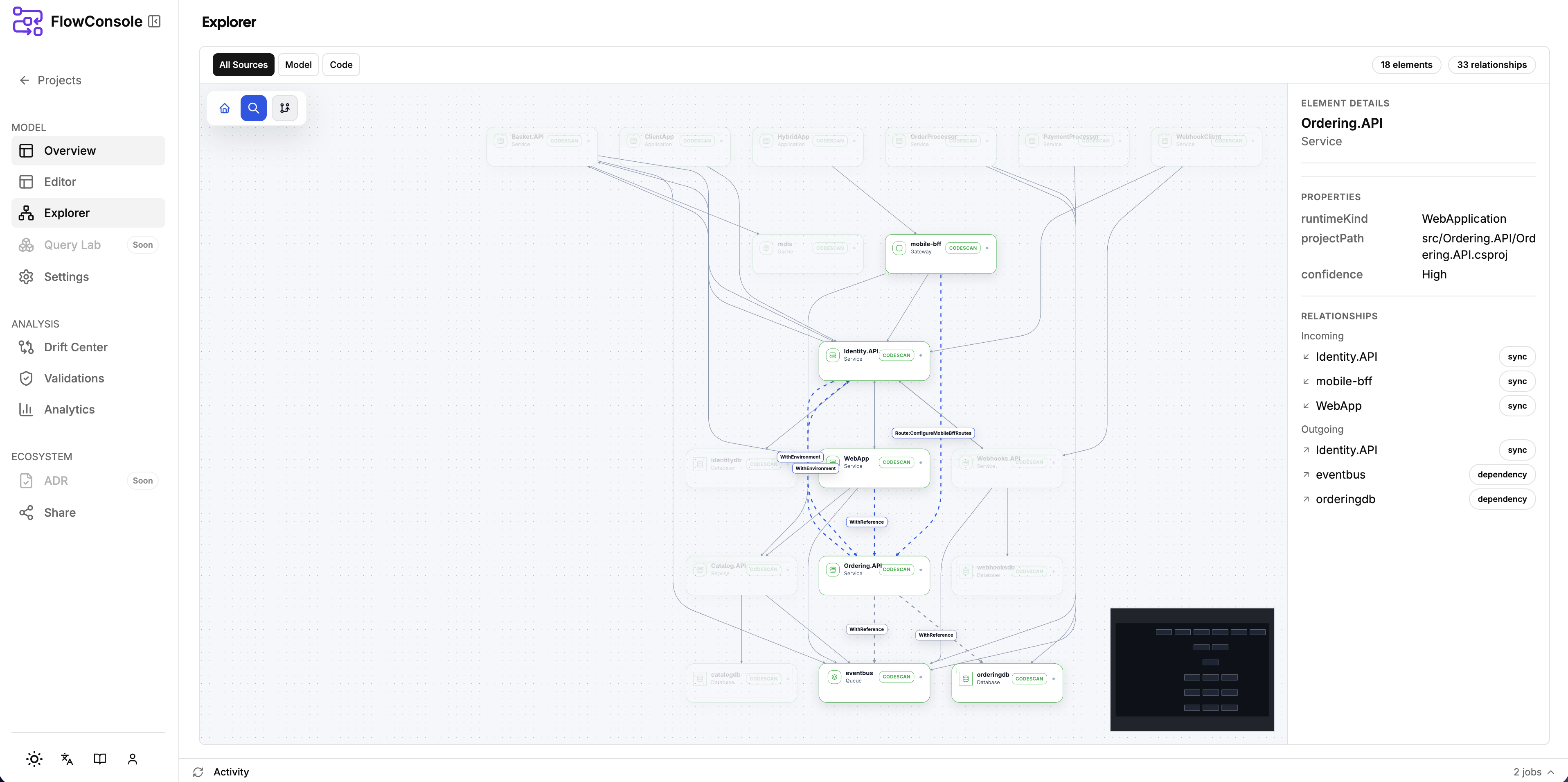
The file starts with actors and system boundaries, then adds frontend apps, APIs, workers, data stores, messaging, and external dependencies.
const customer: User = { name: "Customer", description: "Online shopper" };
const admin: User = { name: "Store Admin", description: "Manages catalog and orders" };

const eshop: ComputerSystem = { name: "eShop Platform" };
const frontend: Container = { name: "Frontends", system: eshop };
const services: Container = { name: "Backend Services", system: eshop };
const data: Container = { name: "Data Stores", system: eshop };In the current Preview DSL:
ComputerSystemdefines the top-level system boundary.Containergroups related applications and infrastructure.belongsTonests concrete elements inside those boundaries.
Follow the main business flow
The checkout flow is a good example because it mixes sync calls, a database write, an event publication, and parallel branches:
customer.sendsRequestTo(webApp, "checkout")
  .then(webApp).sendsRequestTo(apiGw, "POST /orders")
  .sendsRequestTo(orderingApi, "create order")
  .inParallel(
    () => orderingApi.sendsRequestTo(orderingDb, "INSERT order", { kind: "dependency" }),
    () => orderingApi.sendsRequestTo(orderEvents, "publish OrderCreated", { kind: "event" }),
    () => orderingApi.sendsRequestTo(basketApi, "clear cart")
);This pattern is the core of the Preview API: a flow begins at an actor,
advances through then(...), and branches through inParallel(...).
Use sharing for read-only review
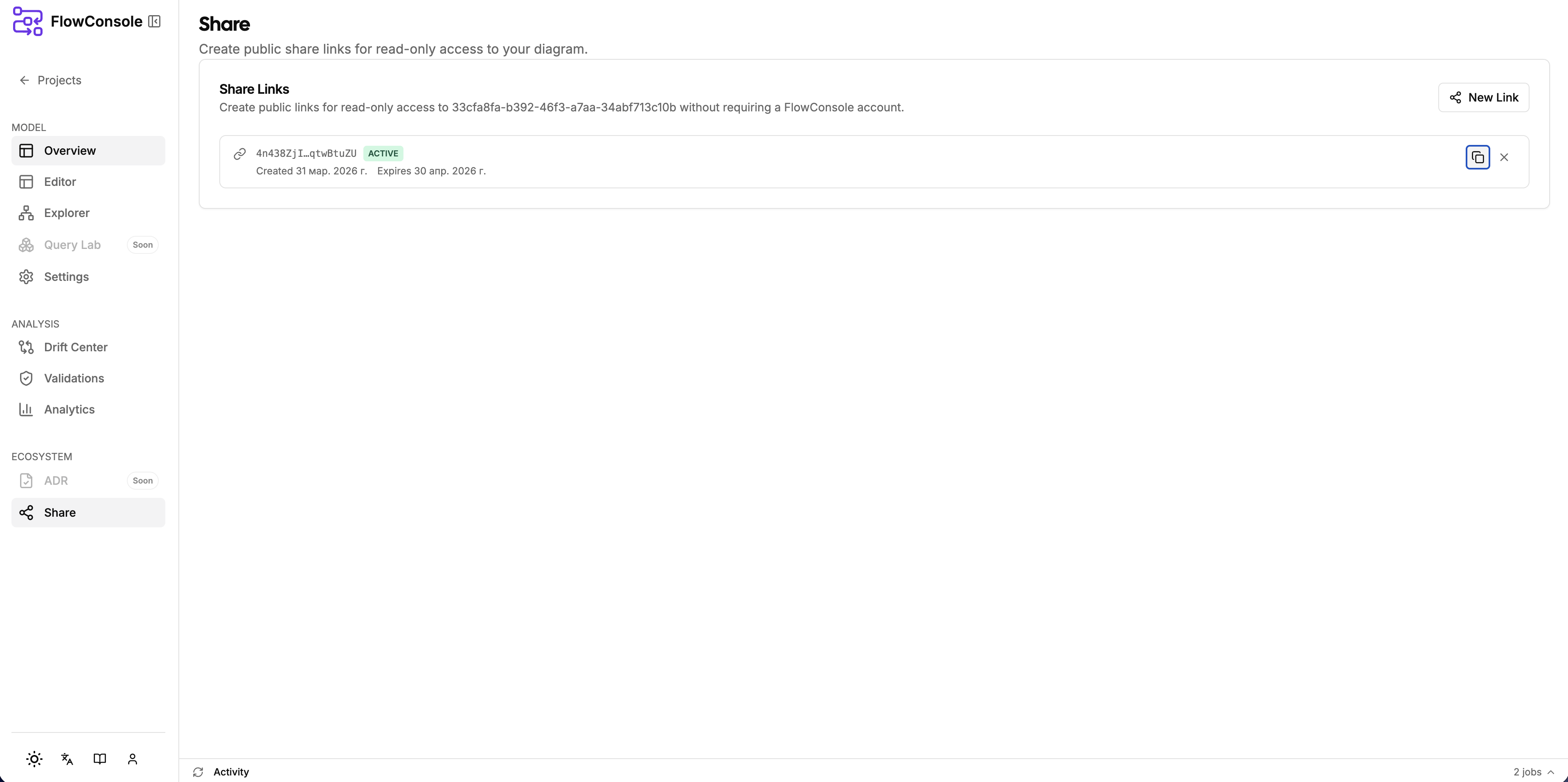
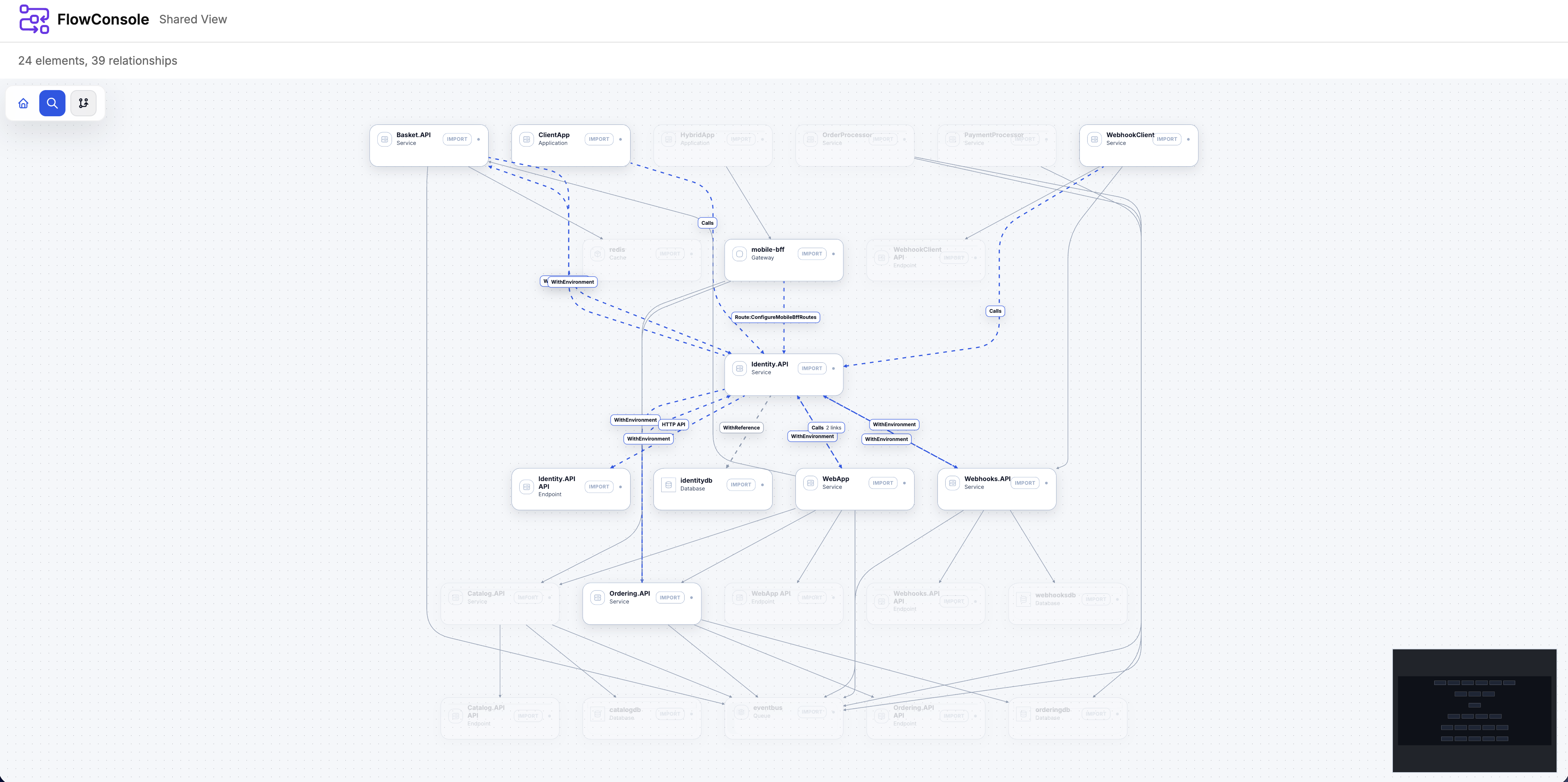
FLOWCONSOLE can create a public share link for a model. You can send this link
to anyone, even if they do not sign in to FLOWCONSOLE. The shared page is
read-only and opens directly on /share?token=....
This is useful when you want to review the model with engineers, product stakeholders, or external partners without giving them edit access to the workspace.
What to learn from this example
The eShop model is valuable because it demonstrates the current Preview surface without extra abstraction:
- system boundaries and container structure
- frontend and backend service modeling
- data stores and event-driven messaging
- fluent flow descriptions with parallel branches
- public sharing of the model through a read-only view
If you want the exact list of entity types and flow methods, continue with the Preview API reference.